
Quick View Bundle (QVBundle) lets you create tiered priced bundles and mix-and-match offers directly inside your Shopify theme. Follow the steps below to install and activate the app.
Step 1: Open the App Listing
Go to the Shopify App Store listing for QVBundle.
Click Install.
Select the store you want to install the app on.
Shopify will ask you to approve permissions before installation continues.
Step 2: Approve App Permissions
When prompted, review the access scopes required for QVBundle to work correctly.
Click Install app to continue.
After approval, Shopify will automatically redirect you into the QVBundle dashboard inside your admin.
Step 3: Complete Initial Setup
Inside QVBundle you’ll see a Setup checklist. These steps help ensure bundles display correctly on your storefront.
Typical steps include:
Confirm billing (dev stores may skip this)
Enable the app embed
Add the bundle block to your theme
Configure bundle settings
👉 The checklist tracks your progress, but you can return to it at any time.
Step 4: Enable the App Embed
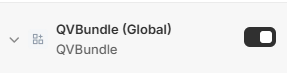
From the dashboard, click Enable App Embed.
Shopify will open your theme editor.
Toggle QVBundle App Embed ON.
Click Save.
This allows QVBundle scripts to load safely within your theme.
Step 5: Add the Bundle Block to Your Theme
In the theme editor, open a page template.
Click ’Add block’.
Select QVBundle.
Position the block where you want bundles to appear.
Click Save.
You can move or remove the block later without affecting bundle settings.
Step 6: Verify Installation
Return to the QVBundle dashboard.
Your Status at a glance panel will update as you click through each task. These tasks do not auto check your settings are enabled.
If you want to come back to a task later, click undo and the status will revert back to Review.
Once enabled, you can begin creating bundle offers immediately.
Frequently Asked Questions
Is QVBundle free?
There is a 14 day free trial on paid Shopify stores, and after 14 days you will need to pay a monthly subscription if you wish to continue with the app. There is no time limit on Shopify Development stores.Why can’t I install QVbundle?
If you’re experiencing issues installing QVBundle, here are a few tips:Shopify Admin Access: Make sure your Shopify admin account has the necessary permissions to install Shopify apps.
App Conflicts: Disable any ad blockers or browser extensions that might interfere with the installation process.
Installation Steps: Follow the official installation guide provided by appFabrication to ensure all steps are correctly executed.
Contact Support: If issues persist, reach out to appFabrication support via email at support@appfabrication.com for assistance.
Cannot see the bundle on the page?
Make sure your app has theme access enabled by enabling app embed toggle to on.Bundle block not visible?
Check that you added the block to a page template and saved the theme.
Need a hand?
Tell me which app you’re using, your store domain and what you were trying to do. An error message or screenshot can help.